If you don’t want to rely entirely on GTA 6’s autosave system, you can manually save your progress whenever you’re exploring the open world.
This lets you create your own save points, protect important progress, and return to a specific moment in the story whenever you want.
GTA 6 includes 15 manual save slots, giving you plenty of room to keep different save files instead of constantly overwriting your latest progress.
Here’s how to save and load your game on PS5 and Xbox.
How to Manually Save in GTA 6?
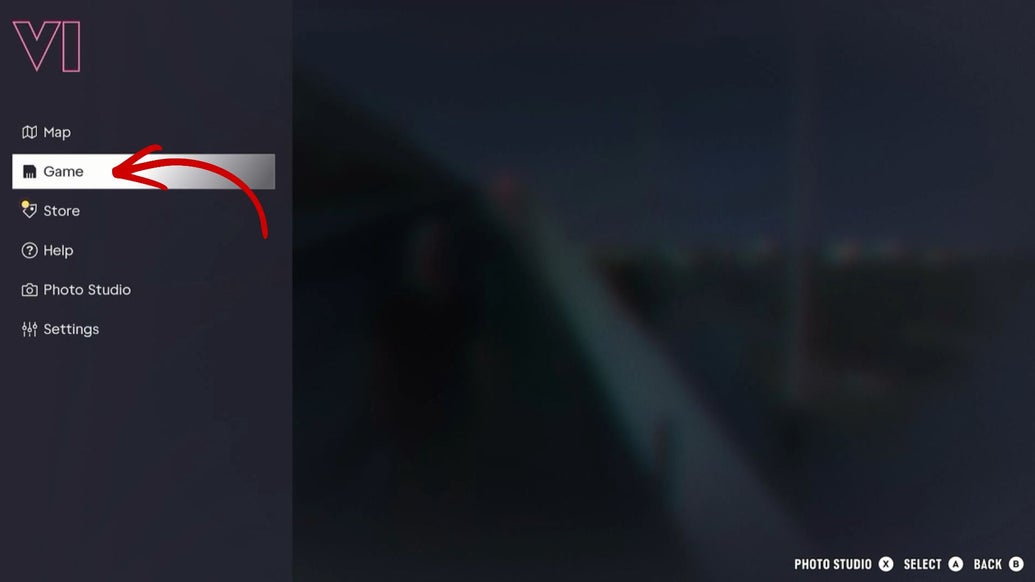
You can manually save your game directly from the pause menu. You don’t need to visit a safehouse, sleep in a bed, or use your in-game phone.
Follow these steps:
- Open the pause menu: Press the Options button on PS5 or the Menu button on Xbox.
- Select Game: Find and open the Game section in the pause menu.
- Choose Save Game: Select the Save Game option to open the available save slots.
- Pick a save slot: Choose one of the 15 available manual save slots. You can select an empty slot or overwrite an existing save.
- Confirm your choice: Select Save again and allow the game to finish saving your progress.
That’s it. Your progress will now be stored in the selected slot.
If you can’t find the Game option, make sure you’re opening the main pause menu rather than the map or another screen.
The Game section contains the options for saving and loading your progress.
Can You Save During a Mission in GTA 6?

No. Manual saving is not available while you’re actively playing a mission. When you open the Game menu during a mission, the Save Game option will usually be greyed out.
You’ll need to finish the mission and return to free roam before creating a manual save.
If you’re planning to stop playing soon, it’s a good idea to save before starting a long mission.
You may also find that manual saving is unavailable during the game’s opening section.
Several launch guides report that the feature becomes available after the prologue, once you reach Jason’s house.
How to Load a Saved Game in GTA 6?
If you want to return to an earlier point in your playthrough, you can load one of your existing save files.
- Open the pause menu using Options on PS5 or Menu on Xbox.
- Go to the Game section.
- Select Load Game.
- Choose the manual save or autosave you want to load.
- Confirm your selection to return to that point in the game.
Remember that loading an older save means you’ll lose any progress made after that save point.
Before loading an earlier file, consider creating a new manual save of your current progress so you have a way back.
How Many Save Slots Does GTA 6 Have?

GTA 6 gives you 15 manual save slots, allowing you to maintain multiple save files throughout your playthrough.
You can use these slots to preserve important story moments, keep backups before major missions, or return to an earlier chapter.
The game also has an autosave system that records progress automatically. However, autosaves aren’t a replacement for manual saves if you want to preserve a particular moment for later.
A useful approach is to keep manual saves at the beginning or end of major chapters and use a few other slots for your latest progress.
This gives you more flexibility if you want to revisit an earlier part of the story.
Conclusion
GTA 6 makes manual saving straightforward. Just open the pause menu, select Game, choose Save Game, and pick one of your 15 available slots.
You can do this during free roam without travelling to a safehouse, but you’ll need to wait until a mission ends if the save option is unavailable.
Don’t rely entirely on autosave, especially if you’ve spent a long time exploring Leonida or completing optional activities. Keeping a few separate manual saves is an easy way to protect your progress.